
AI tools make it easier than ever to turn an idea into something tangible. A founder can go from a rough concept to screens and working frontend code in an afternoon.
That doesn’t mean designers and developers are becoming obsolete. We’re far from that. But they’re using AI to speed up their work, too. According to Figma’s State of the Designer 2026 report, 72% of designers, including Habitat, now use generative AI in their work. On the development side, a quarter of the startups in Y Combinator’s Winter 2025 batch had codebases that were 95% AI-generated.
With AI becoming a bigger part of design and development, new tools keep popping up. There are so many to choose from that it’s hard to tell which ones are actually useful. That’s why we put together this list.
Below are the 20 tools our team recommends, grouped into 4 stages from the first idea to launch:
- Ideation tools for finding references and turning an idea into screens
- Design tools for building the design system your code will be based on
- Content tools for creating photos and video for your site or deck
- Design-to-code tools for turning the design into a working product
Each category features several tools, plus our favorite pick.
How to choose the right tool
We’ve organized the list around the way a product usually takes shape, from the first rough idea to production. You don’t have to read through all 20 tools, just find the stage you’re at and start there.
| If you need to... | Go to |
|---|---|
| Find references or see your idea as screens | Ideation |
| Turn the idea into screens and a design system | Design |
| Make photos or video for your website, deck, or launch | Content |
| Sketch a site structure or rough UI | Design-to-code: Draft it |
| Get a working demo | Design-to-code: Demo it |
| Build code | Design-to-code: Ship it |
Each stage includes a few tools, with a quick note on what each one is good for. If you're torn between a quick demo and a real build, ask yourself whether you plan to keep the code. If you do, go straight to the Ship it section. A demo can be a great way to test an idea, but if you end up building the real product on top of it, you may have to rebuild it later.
Inspiration and ideation tools
These tools are for the stage before you start properly designing. Here, you can find references, collect ideas, and get something visual on the screen. The first two are mainly inspiration libraries; Variant goes a step further and generates screens for your specific idea.
Codrops Creative Hub
Codrops is a good place to look when you want to add something interesting to a website but don’t know exactly what yet.
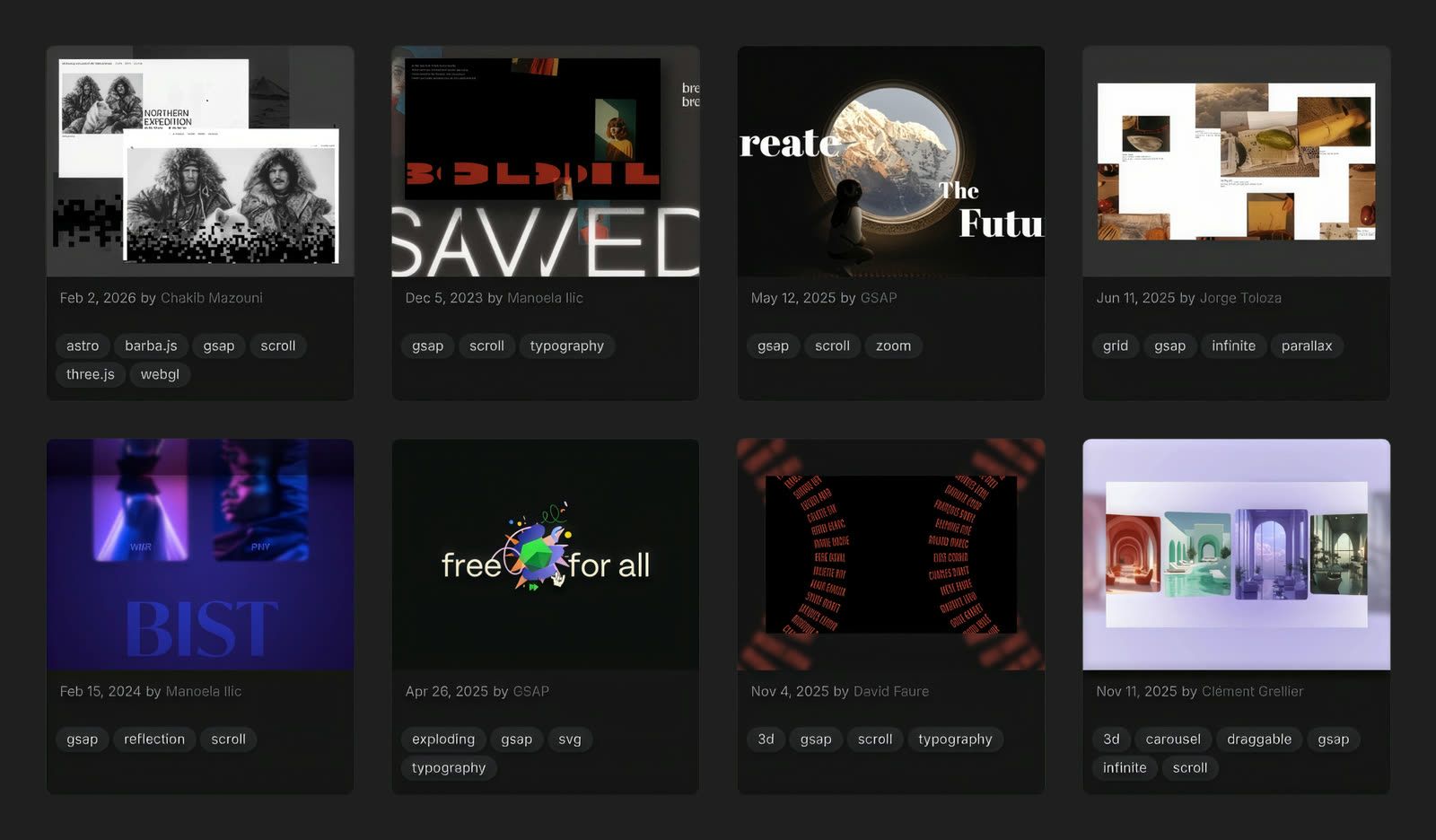
The examples are organized by categories like scroll effects, hover interactions, page transitions, and WebGL, so you can browse by the type of interaction you need. Many examples come with the actual code on GitHub or CodePen, and some have tutorials.
Codrops is good for finding a specific interaction or animation and giving your AI agent an example to work from.
Recent
Recent is more about the overall look. You can browse current websites, interfaces, branding, motion, 3D, app icons, and other design work, all sorted into categories. When you find something you like, you can save it and add it to your brief or prompt.
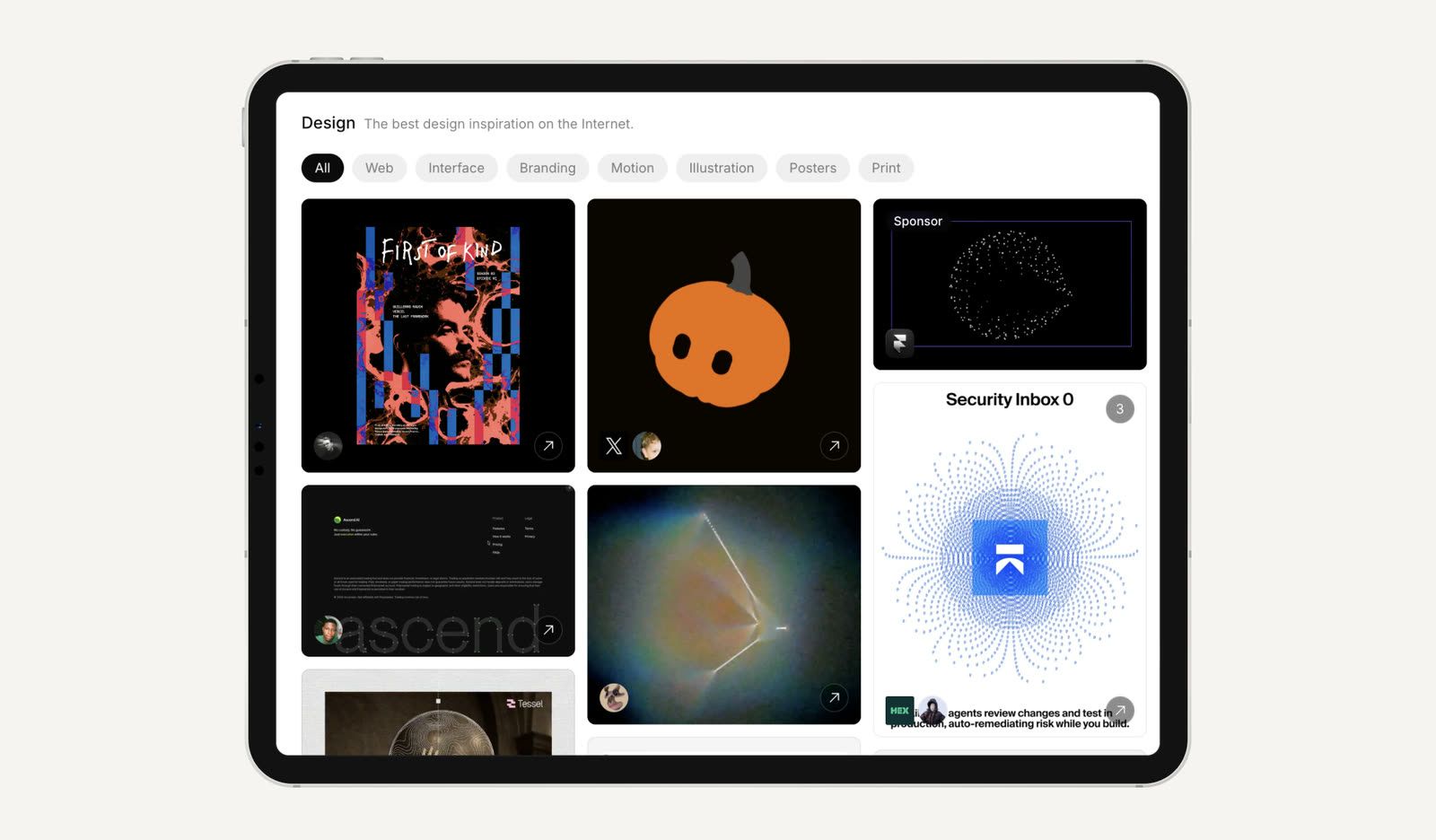
It also has a Skills section with ready-made instructions for AI agents, so you can use the references as a starting point for your own product.
Recent works great for collecting visual references before you start designing.
Variant: Habitat’s pick
Variant is Habitat’s pick in this category. We use it right at the start, when we’re still exploring the idea. You describe the app or site you have in mind, and Variant generates draft screens, with more versions appearing as you scroll. It fills the gap the first two tools can’t: sometimes the product you’re imagining simply doesn’t exist in an inspiration gallery yet.
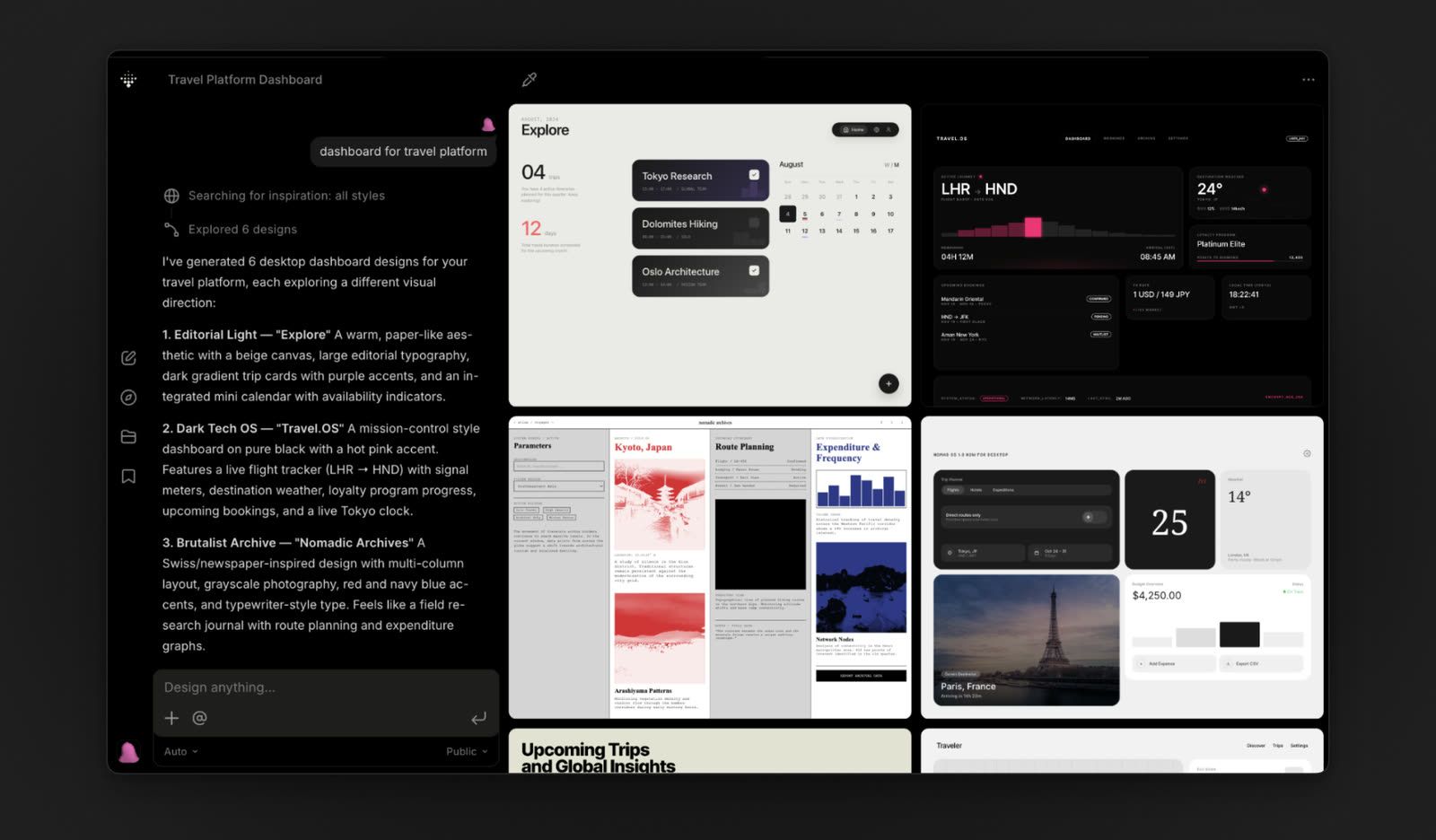
It’s useful when you need to see the idea on a screen before deciding how the product should look and work. A free plan is available; Pro starts from ~$20/mo.
Variant is perfect for quickly turning a product idea into screens.
Design tools with AI built in
This is the stage where you start shaping how the product looks and works. We mostly use Figma for this, while Pen and Paper are worth looking at if you want AI and code to be more closely tied to the design itself.
Figma Design, Figma Make, Figma Motion, and Figma MCP: Habitat’s go-to
Figma is where we start our design work, and that’s our pick in this category.
Figma Make can turn a prompt into a working prototype inside the same file, which is useful when you want something clickable before the full design is ready.
Figma Motion lets you work on animations without leaving Figma.
The Figma MCP server connects a coding agent like Claude Code to the live Figma file. Instead of working from a screenshot, the agent can read the components, variables, layouts, and styles while writing the code.
Figma works well when you need to keep the design system in one place and give your coding agent direct access to components and variables.
Pen
Pen is a Figma-like design tool with more AI built into the canvas.
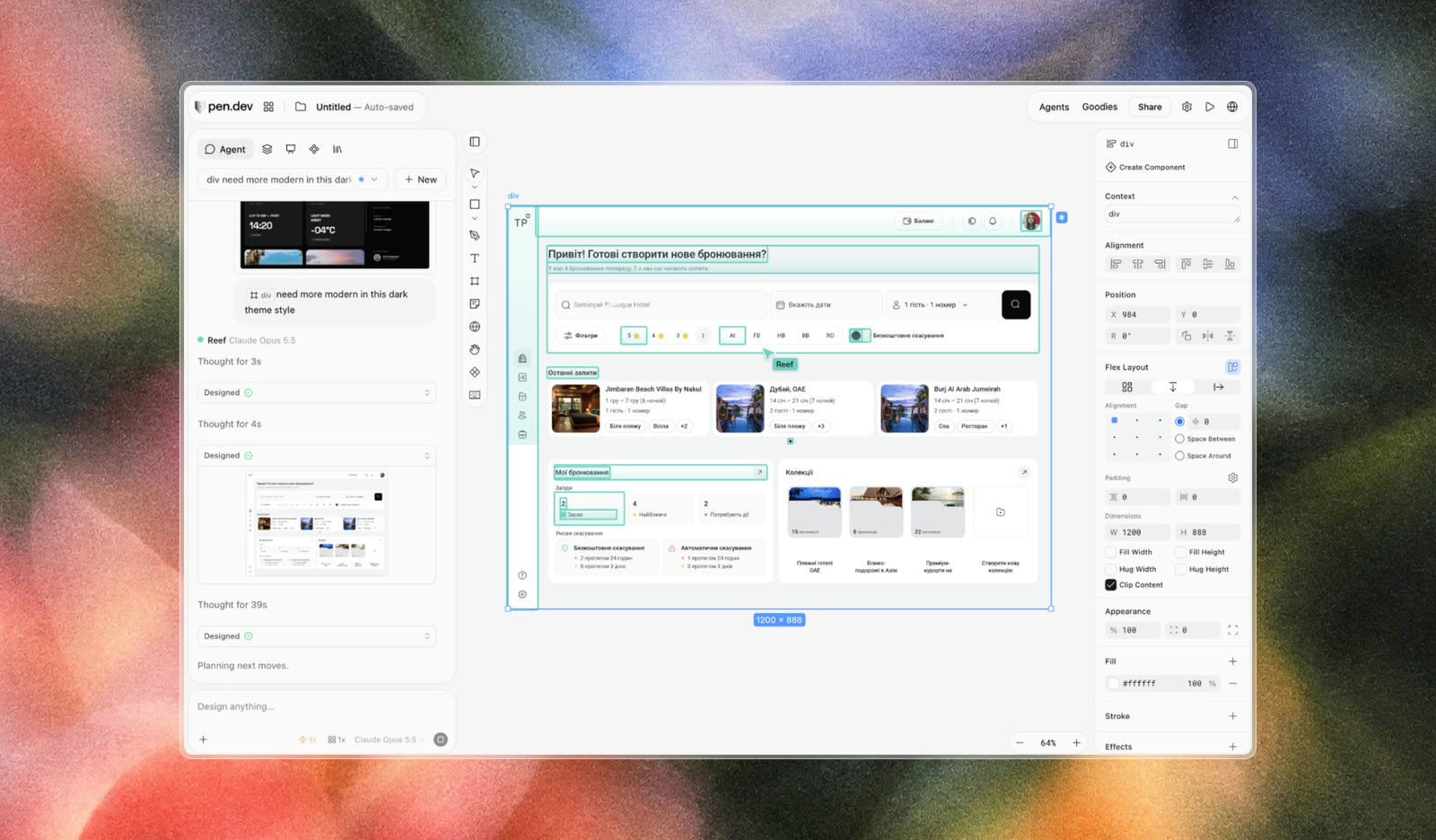
You can work with your Claude or ChatGPT subscription, connect Claude Code or Cursor through MCP, import Figma files, and export designs as HTML and Tailwind.
Pen has a free tier; Pro is $16/month.
Pen works well for designers who want to go from a visual design to working code without a handoff.
Paper
Paper is built around the idea that the canvas and code should stay connected. Designs are built with HTML and CSS, and you can sync components, styles, and tokens with your codebase.
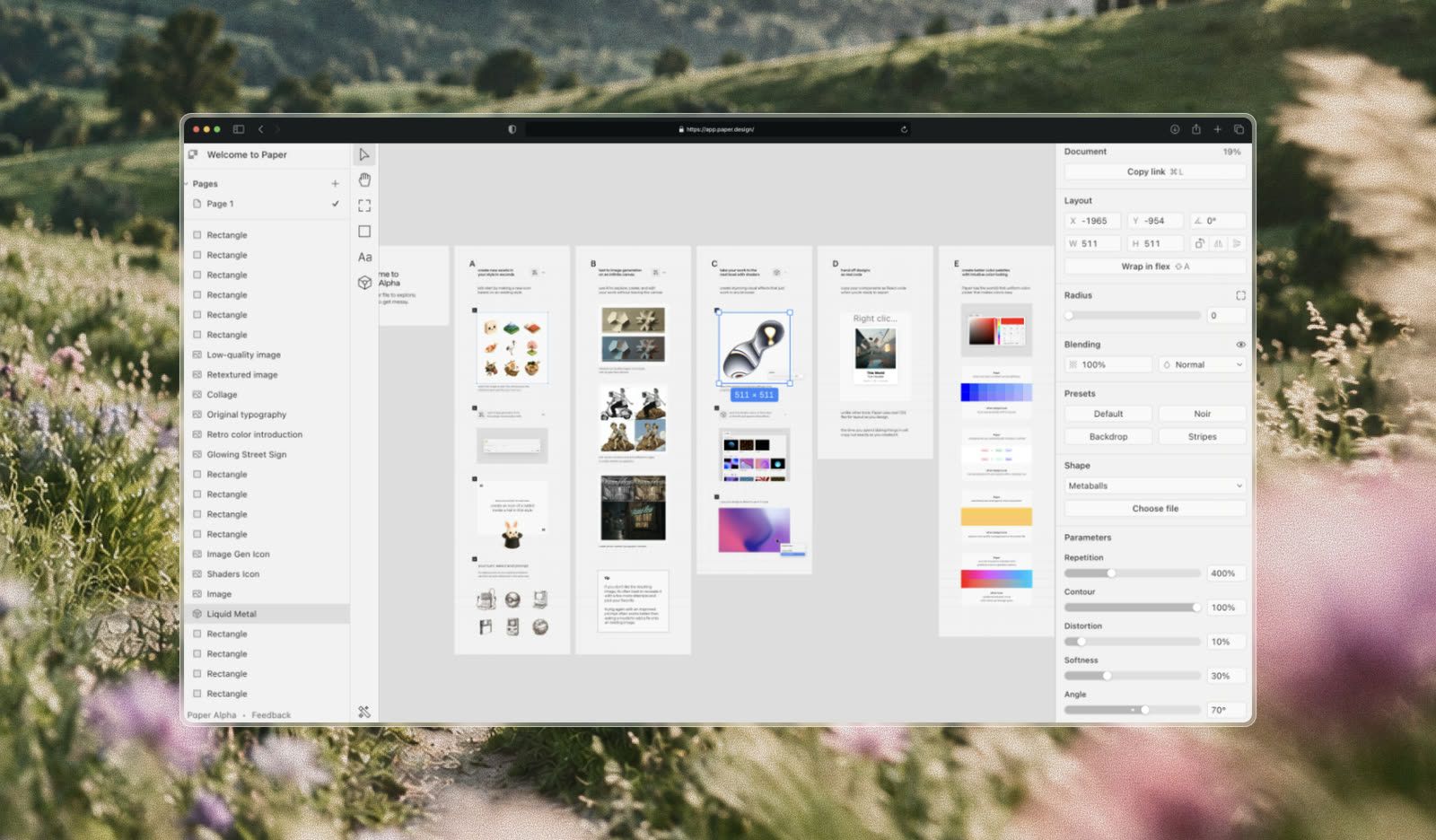
You can also bring real content and data into the design instead of working with placeholder text. It has a free plan; Pro starts at $20/mo (or $16 if paid annually).
Paper is good for teams that already have a codebase and want design and code to stay in step. But for a blank-page idea, Figma or Pen is simpler.
AI content tools for photo and video generation
These tools are for creating visual content when you don’t have the photos or video yet. Luma is useful when you have several references or assets to combine; Runway and DaVinci are more prompt-driven; Exactly is built for consistent marketing visuals.
Luma AI: Habitat’s pick
Luma gives you a canvas where you drop every file you want to combine, from product shots and references to rough sketches, and generate a video or photo from all of them together. You can also describe a scenario and let it build the video across several models.
Luma is our favorite in this category because the canvas keeps every output tied to the references you gave it, and that holds a set of visuals together from the homepage to the launch video.
There’s a free plan; paid tiers start from $30/mo.
Luma is good for hero videos and product visuals built from your assets, but without your own references, the results look generic.
Runway
Runway is similar to Luma, but the workflow is more straightforward: you describe what you want and generate it. There’s no canvas for collecting all your references first.
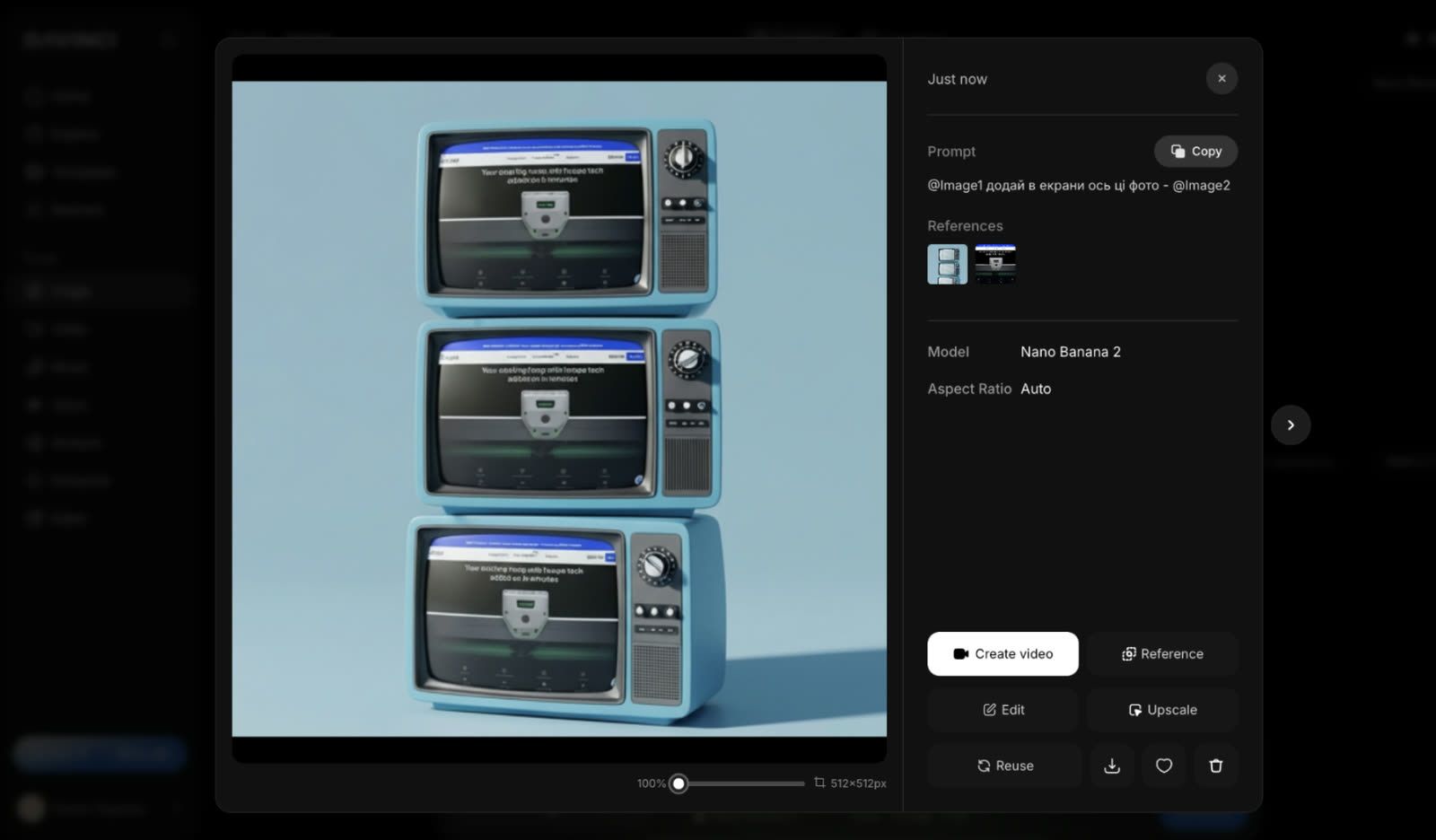
You can use it for free; the standard tier with more credits and access to all models is $12/mo (paid annually).
Runway generates good clips, but it’s hard to keep a set of visuals consistent without a reference board.
DaVinci
DaVinci gives you access to more than 50 image and video models in one place, including Sora, Veo, Kling, and Flux. You can try different models without opening a separate account for each one.
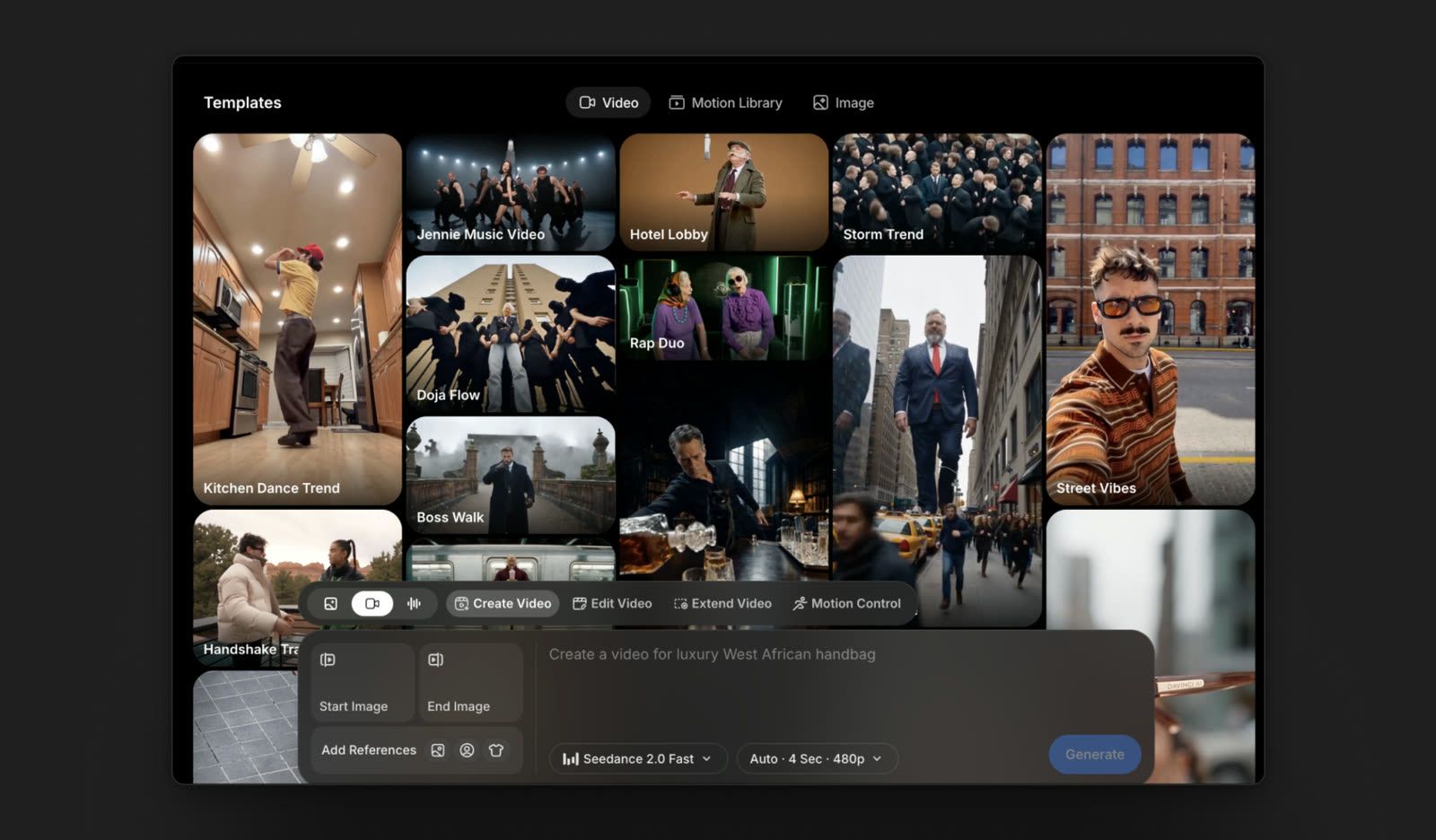
There’s a free tier; paid plans start at $19.99/month (or $7.92 if billed annually).
DaVinci works well for testing different models on the same idea and seeing which one gives you the result you need.
Exactly
Exactly is built for marketing teams. Give it a visual style, and it generates photos, illustrations, and graphics that stick to it. The lifestyle photos look surprisingly real.
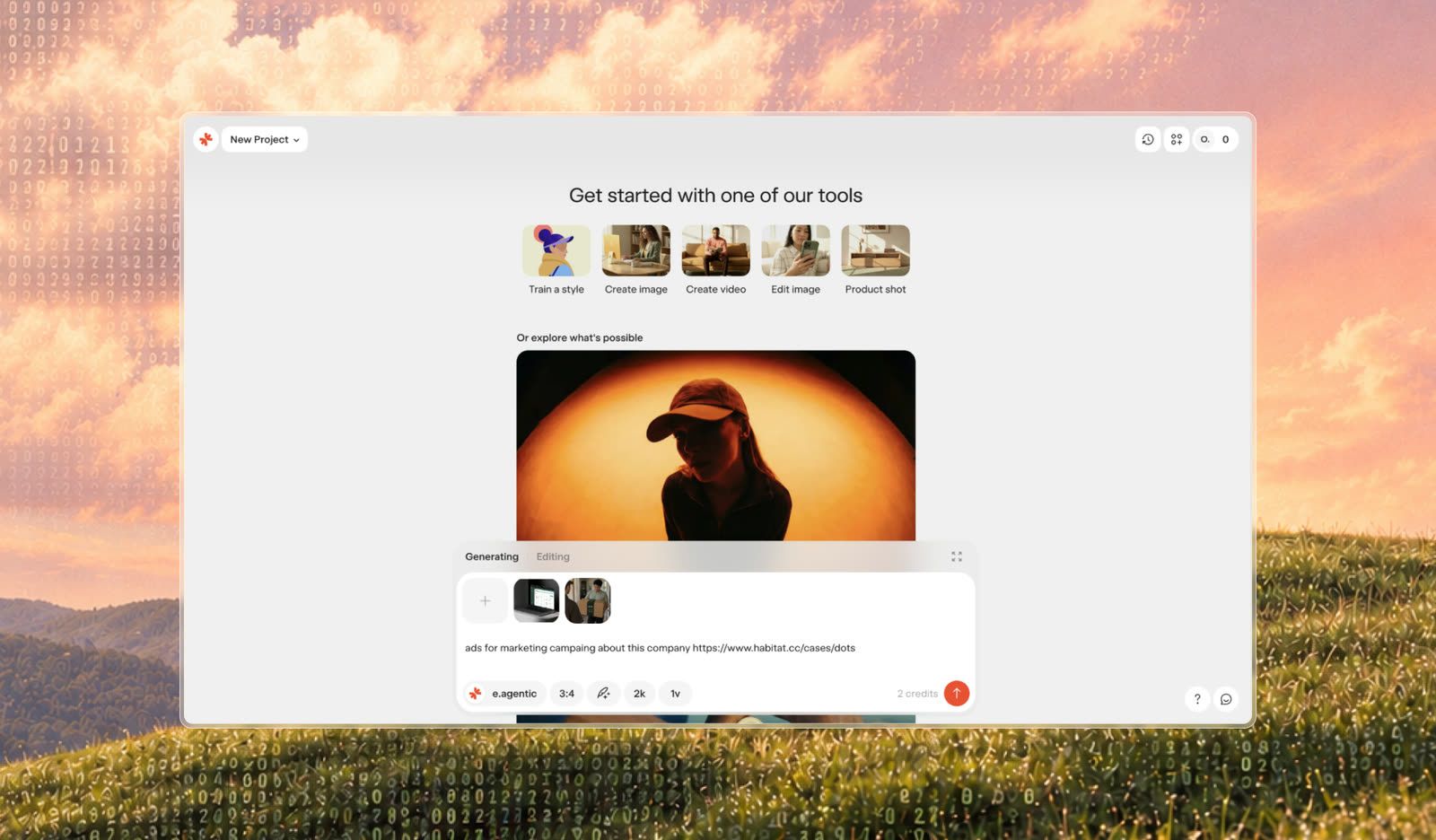
You can book a free demo; the 3-month pilot costs £500/month.
Exactly is perfect for on-brand marketing visuals once your style is set. But after a free demo, the pilot costs £500 a month for three months.

Get the week’s best stories
AI design-to-code and vibe coding tools
This is the stage where you turn a design or idea into something you can test.
We split these tools into 3 groups:
- Draft it for structure and rough UI
- Demo it for testing a working idea
- Ship it for production-ready code in your own repository
The key difference is what you plan to do with the code afterwards. A demo can be generated quickly, but production code needs a solid architecture, a codebase, and someone who reviews what the agent writes.
Draft it: structure and UI concepts
These tools are useful before you need a full working app. They help you figure out the page structure, layout, and basic UI.
Stitch by Google
Stitch is good when you have a rough idea of what a screen should look like, but don’t want to build it from scratch. Give it a text description, an existing image, or even a photo of a sketch, and it turns that into UI screens. You can then take the result into Figma or export frontend code.
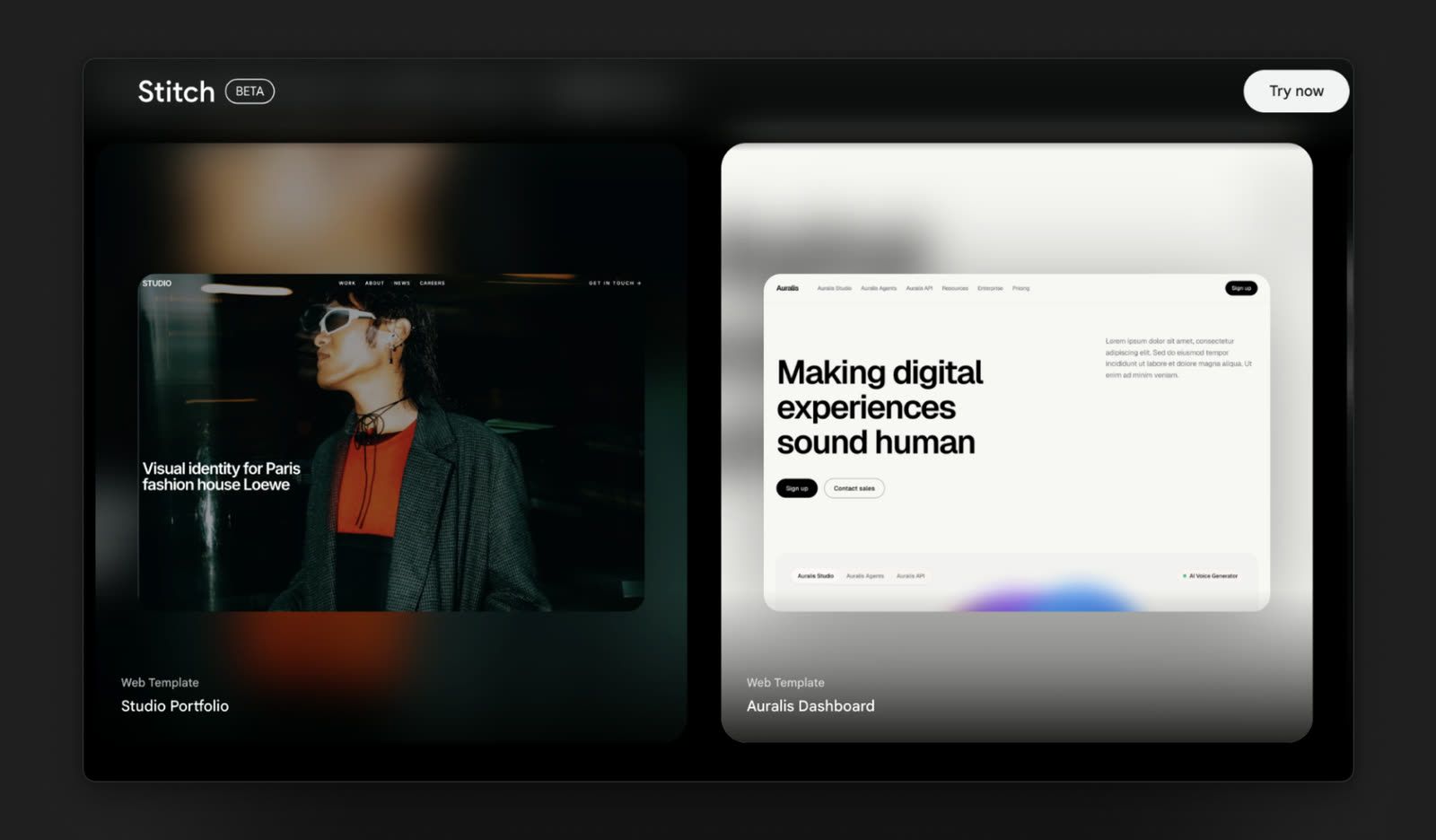
It’s perfect for trying several layouts early. You can get 3-4 versions of a screen in minutes instead of designing each one manually.
Stitch is a quick way to turn a rough idea into something visual before you get into product and interaction design.
Relume
Relume starts one step earlier than Stitch. Instead of jumping straight into individual screens, it helps you work out what the website should contain.
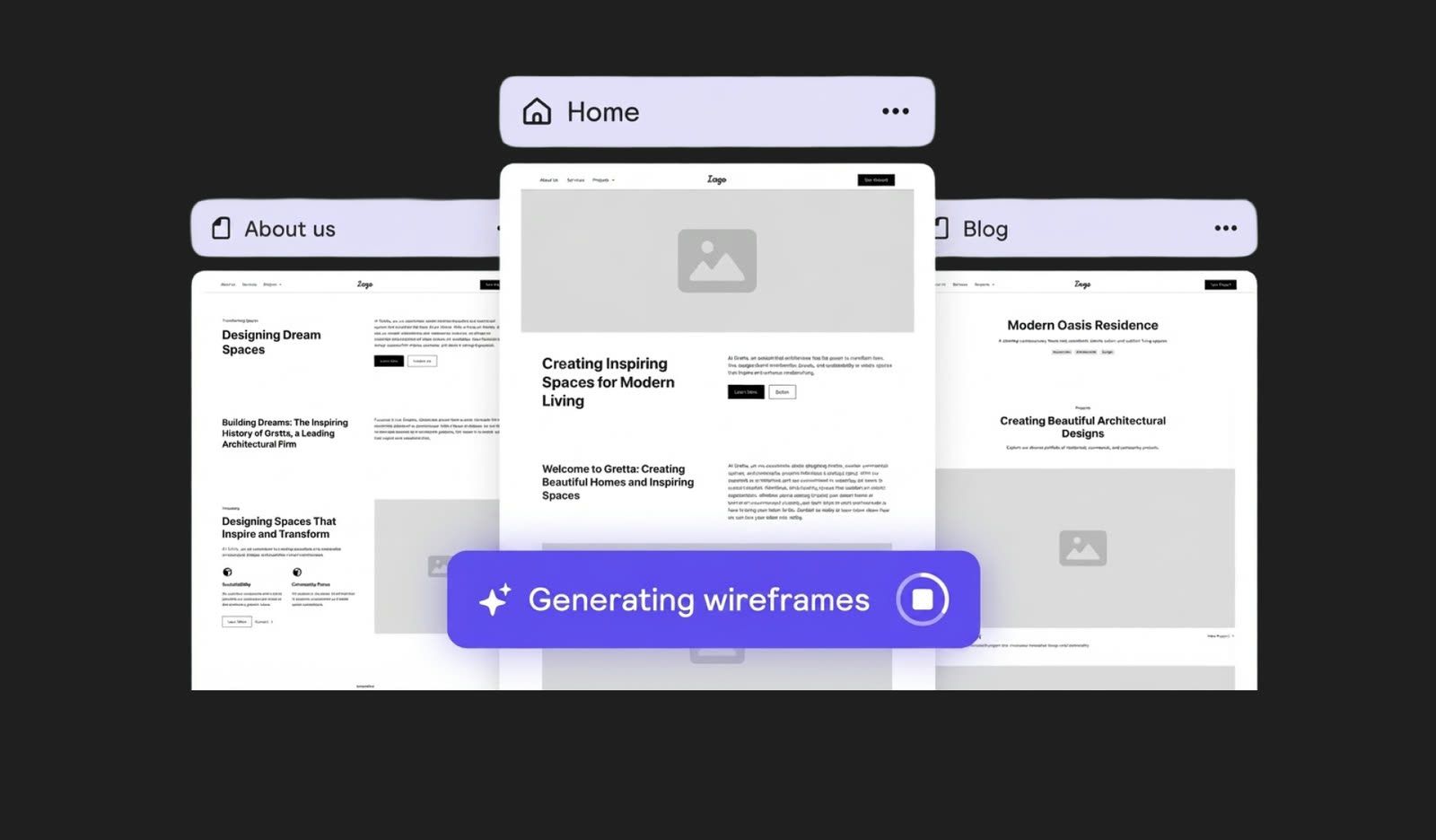
Give it a description of the site, and it generates a sitemap and wireframes, which you can then take into Figma or Webflow.
Relume is a good starting point when you know what the website is about but haven’t worked out its structure yet.
Demo it: from prompt to working app
Use these tools when you need something clickable quickly for a user test, client meeting, investor demo, or just to see whether an idea works.
The catch is that the fastest way to get a demo is not the best way to build the product behind it. If the prototype gets traction and you decide to keep it, check what you’re getting in the code before building too much on top of it.
Lovable
Lovable takes a product description and turns it into a React app with a Supabase backend. It can also set up things like authentication, a database, and security rules, so you can get much further than a set of static screens.
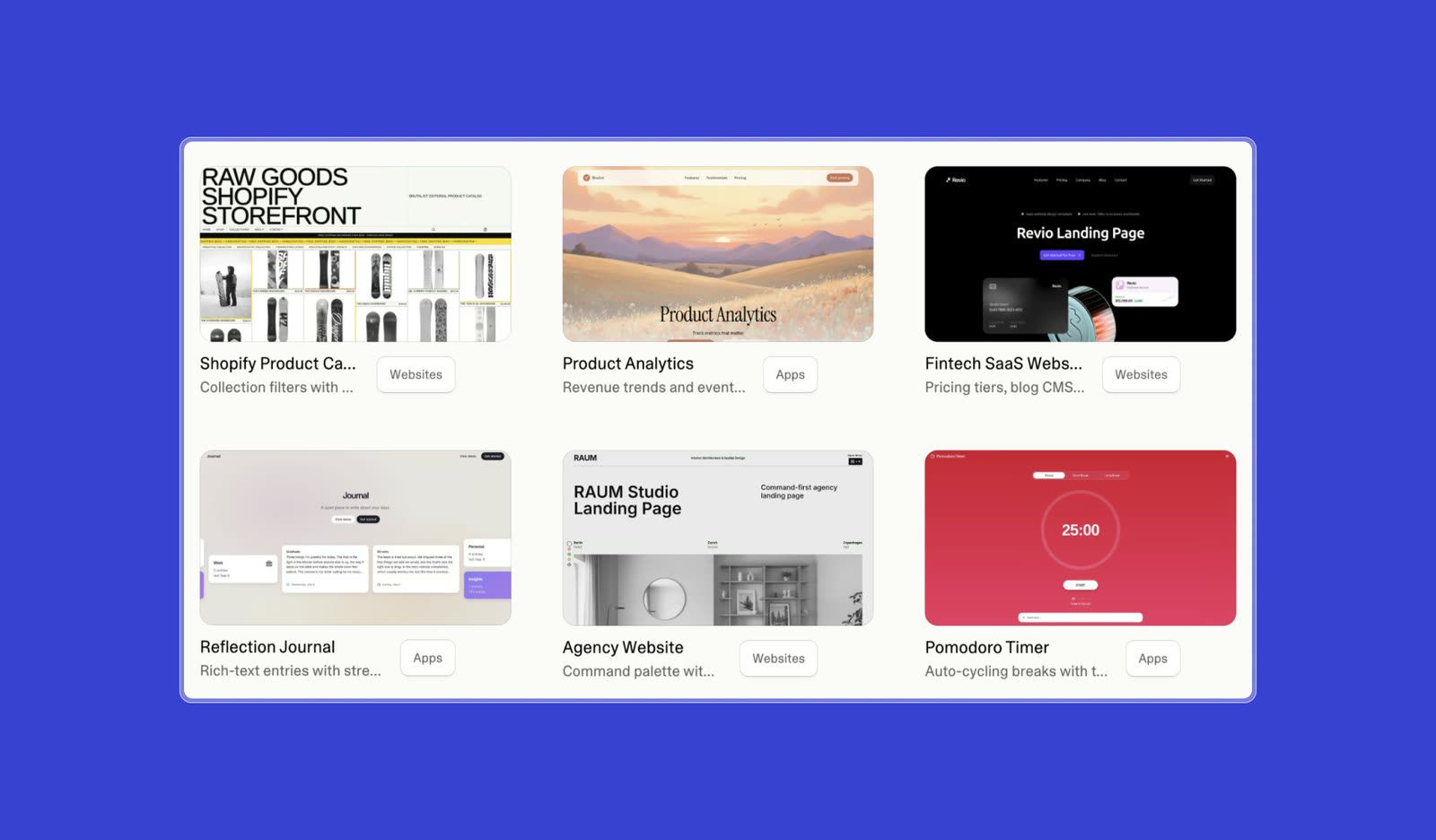
The appeal is the speed: you can go from an idea to something clickable very quickly. That makes Lovable perfect for testing an idea, trying out an interaction, or putting together a small internal tool. For a full product, though, an engineer needs to set up the code structure first so it can support everything you’ll add later.
Lovable is good for founders who want to test an idea quickly.
v0 by Vercel
v0 is useful if you’re working in React. It generates screens and components with shadcn/ui and Tailwind, so the output is already close to a stack many frontend teams use.
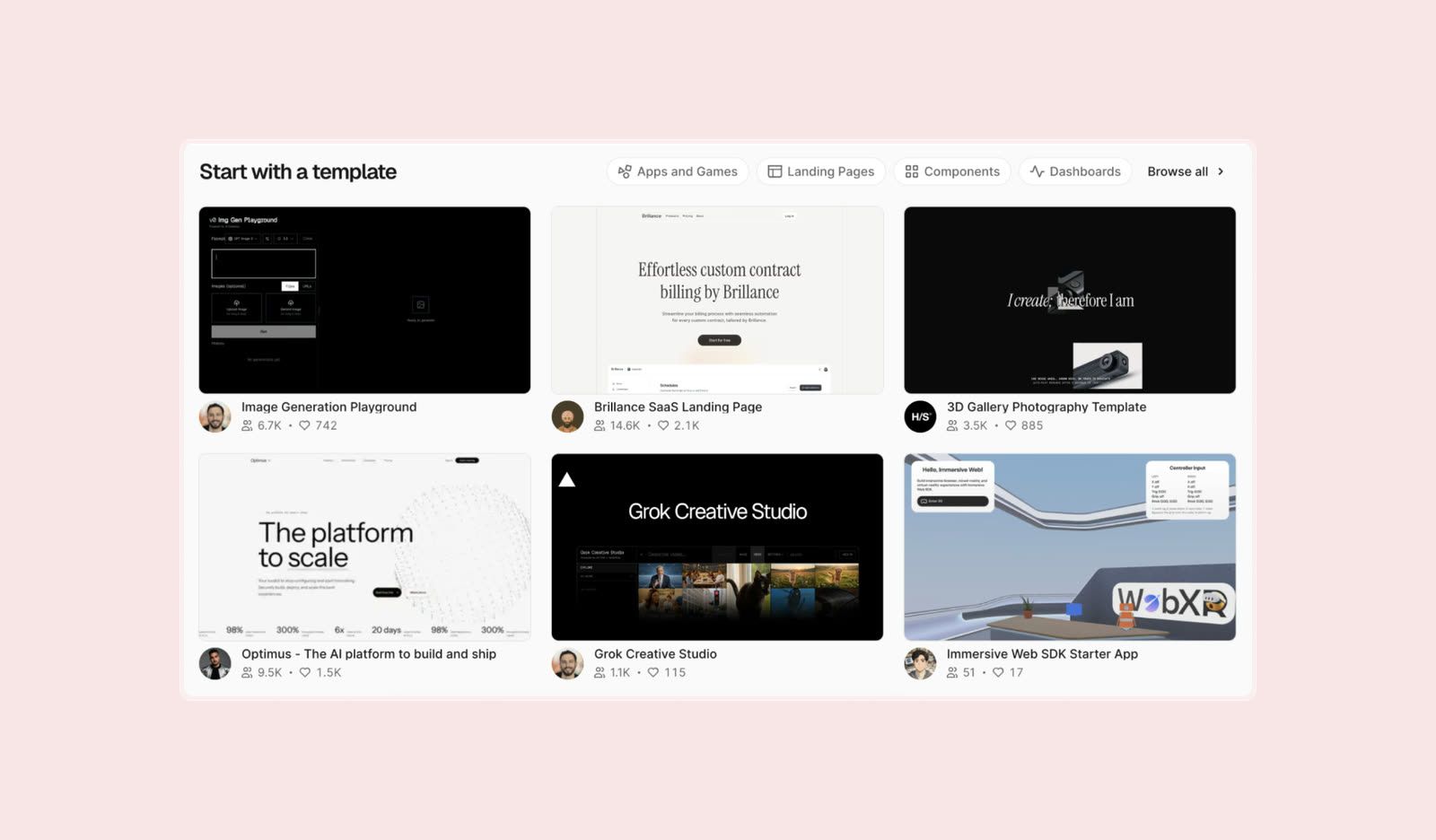
You can also connect it to an existing GitHub repo. That makes it more interesting than a throwaway prototype tool: you can use it to add a screen or component to a project that already exists instead of starting from a blank app.
v0 is handy when you want to get a React interface from an idea to a working version quickly.
Bolt
Bolt gives you the editor, terminal, and live preview in one browser window. You can work with React, Vue, Svelte, and Astro, as well as mobile projects through Expo.
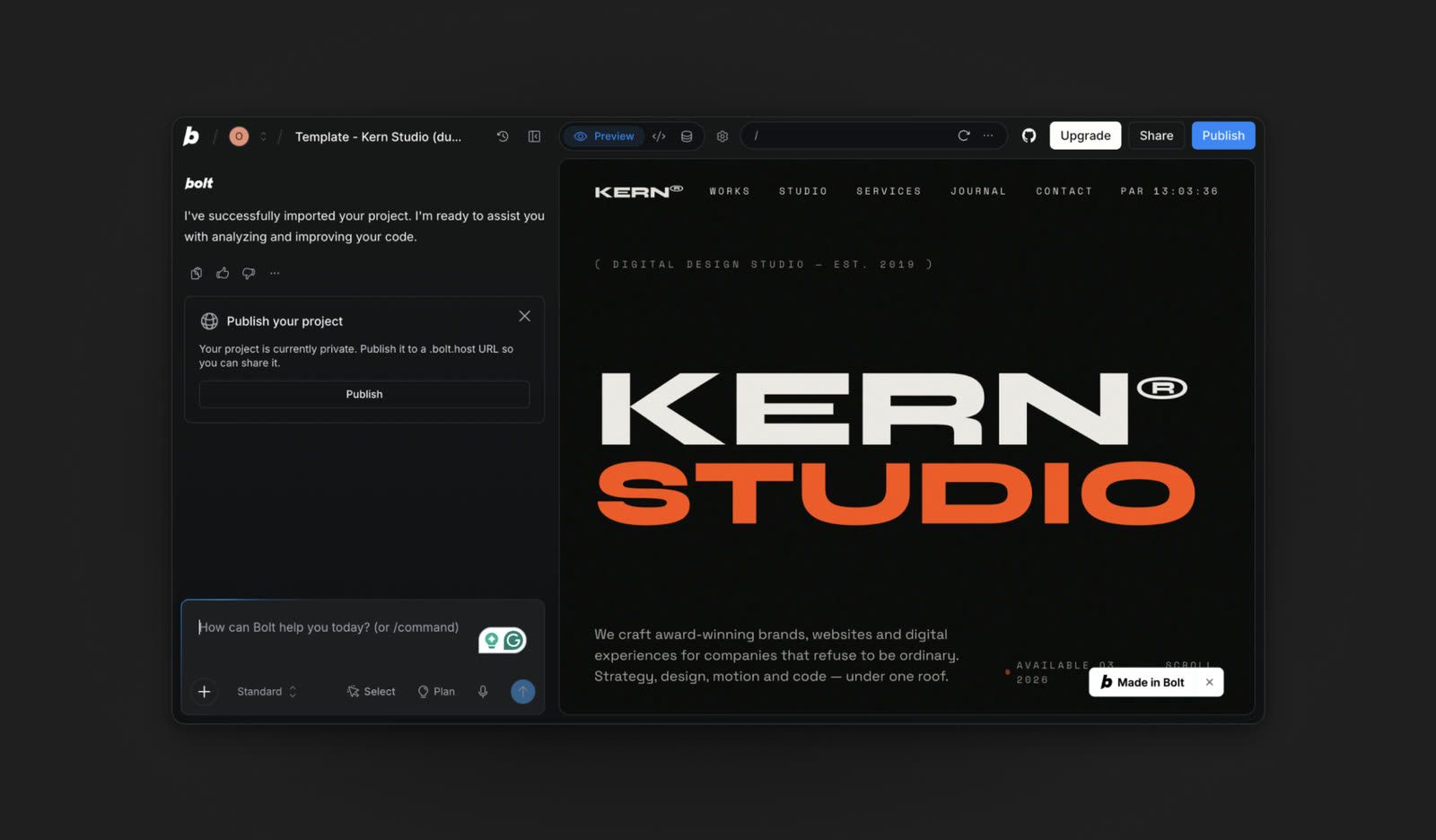
What we like about this setup is that you don’t have to stop and configure a local environment before trying something. Ask for a change, see it in the preview, and keep iterating. Plans start free, while the Pro plan is $25/month, with usage based on tokens.
Bolt is useful for fast experiments when you want to make a change and immediately see what it does.
Base44
Base44 builds an app from a chat description. It handles the backend, database, and authentication for you, so you can build simple tools without setting up all of that infrastructure yourself.
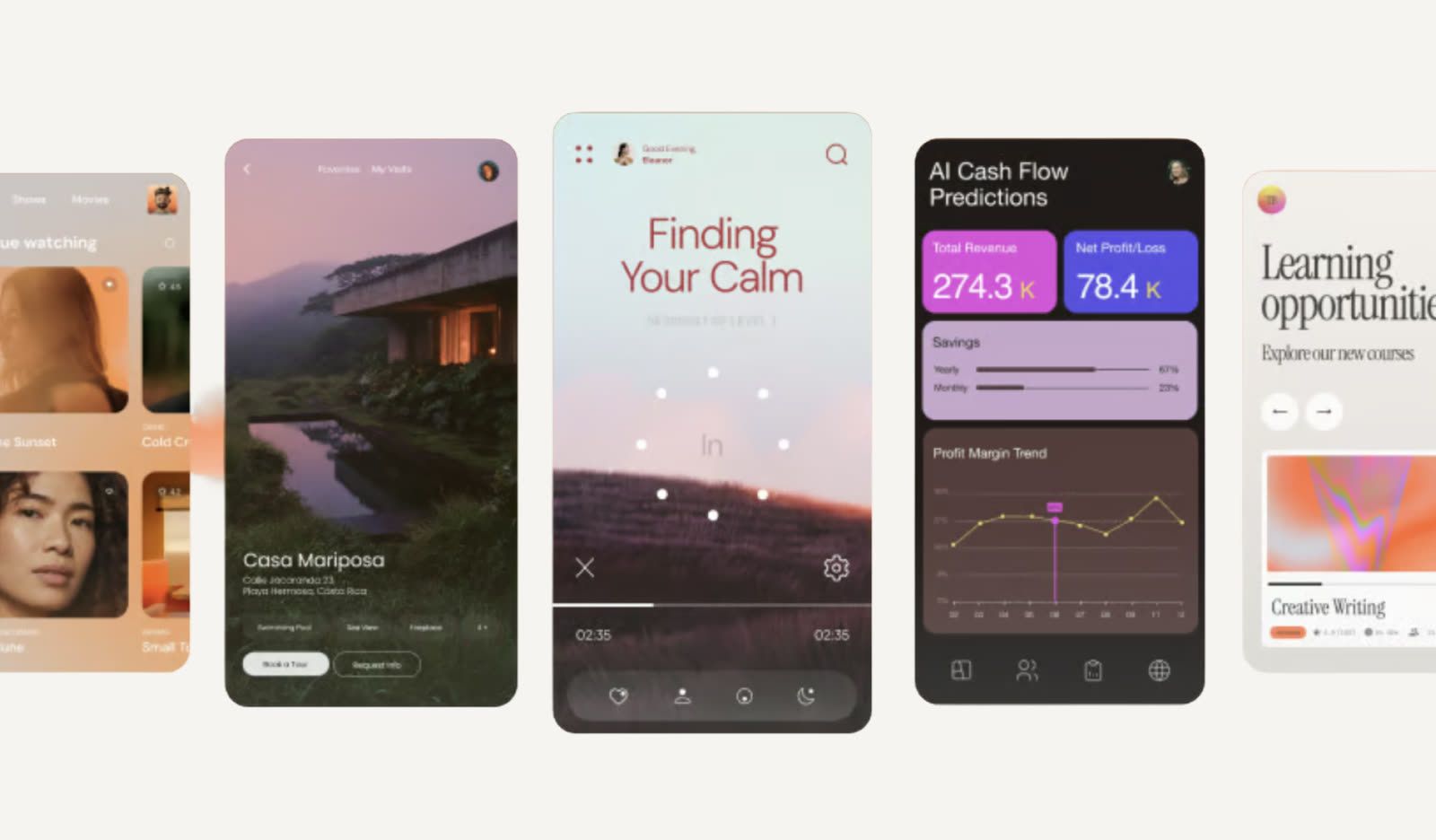
But the app stays on Base44, so check the export options before using it for something you plan to keep.
Base44 works well when you need a small app quickly and don’t want to spend time setting up the backend yourself.
Ship it: coding agents in a real repo
These tools are closer to how we use AI in development work. The code belongs to your project from the start, the agent works with the existing codebase, and you can keep reviewing and changing it as the product grows.
Ship Studio: Habitat’s pick
Ship Studio has the coding agent, GitHub repo, preview, and deployment in one app. You can work with Claude Code or Codex, see the result as you make changes, push to GitHub, and deploy to Vercel.
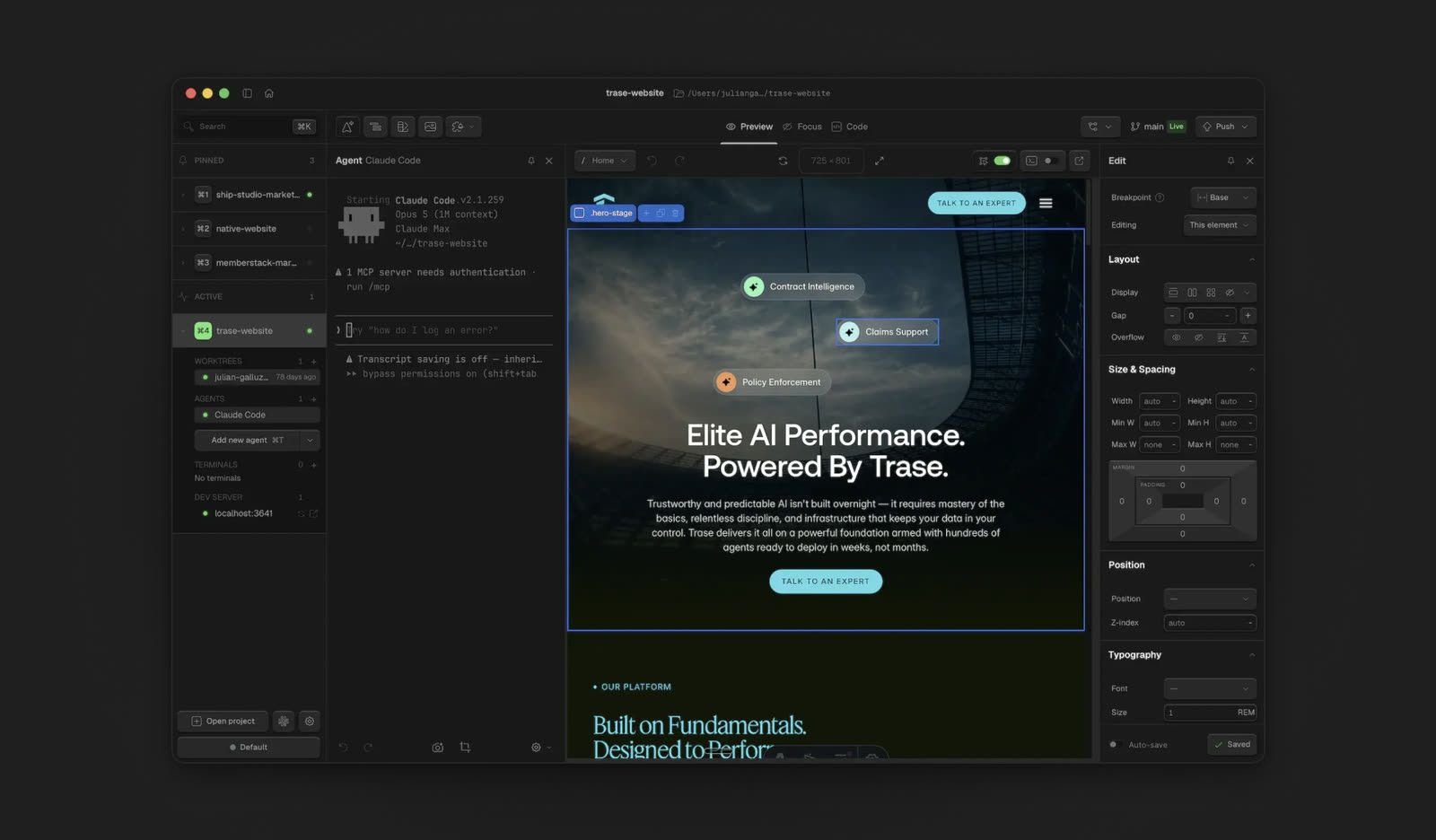
The visual mode is useful too. You can click an element on the page and edit the code behind it without spending AI credits, which is a nice way to make small visual fixes.
We've also used it outside web work. For the product animation below, our designer wrote the prompts in Ship Studio, and Claude Code built and animated the 3D scene in Blender, while our designer shaped the result prompt by prompt.
Ship Studio fits well when you’re building a website and want the AI, code, preview, GitHub, and deployment steps in one workflow.
Cursor
Cursor is a VS Code-based editor with AI agents built into the workflow. The important difference from the browser-based builders is that the agent can work directly with your existing project.
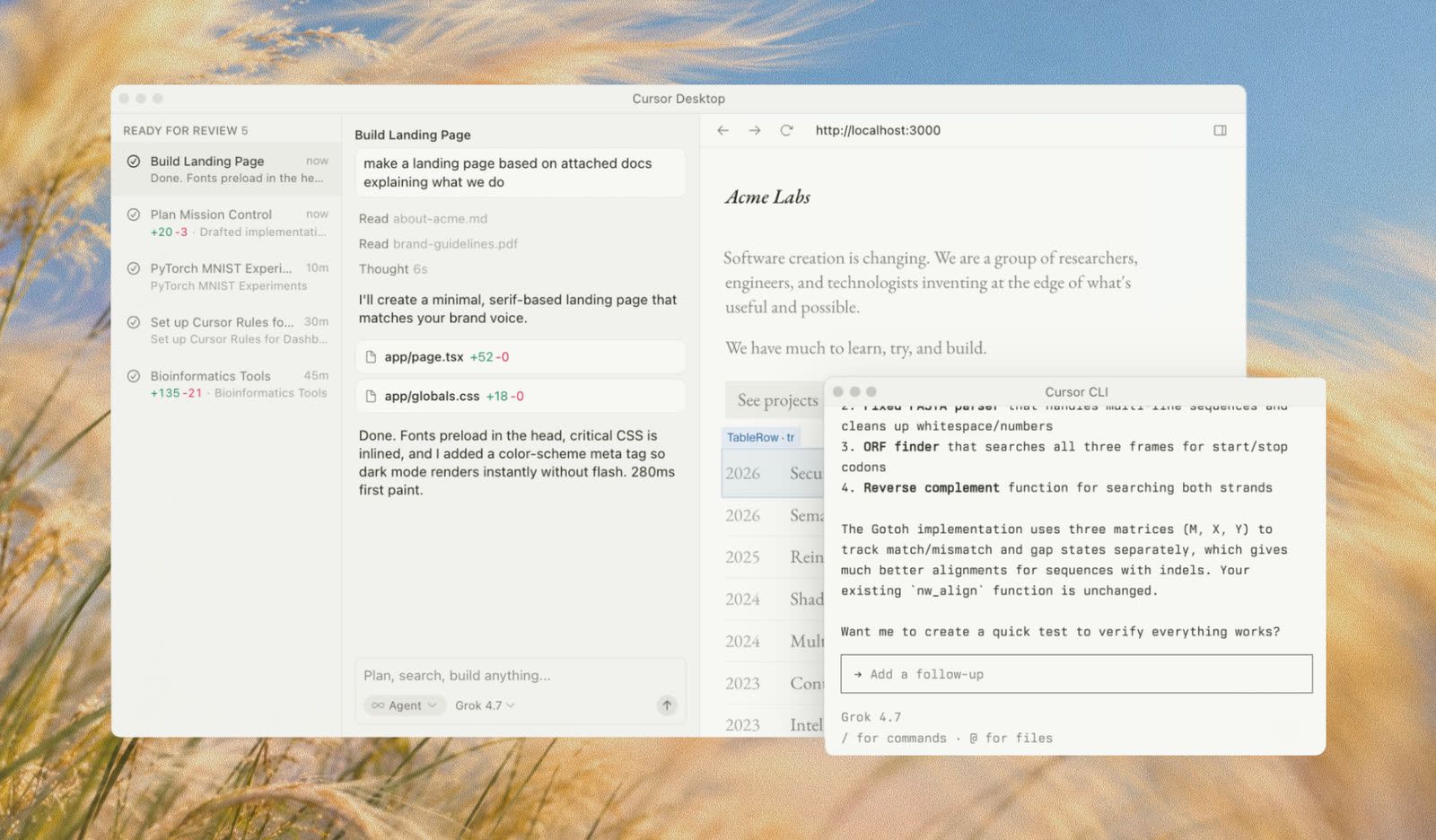
You can give it access to the whole codebase, set project-specific rules, and ask it to make changes across multiple files. That makes it much more useful once you already have an app and aren’t starting from a prompt.
Cursor is the one to use when you already have a codebase and want an AI agent to work alongside you inside it.
Orca
Orca is useful when you don’t want to test one approach at a time. You can run several agents, including Claude Code and Codex, in parallel, with each one working on its own isolated copy of the repo.
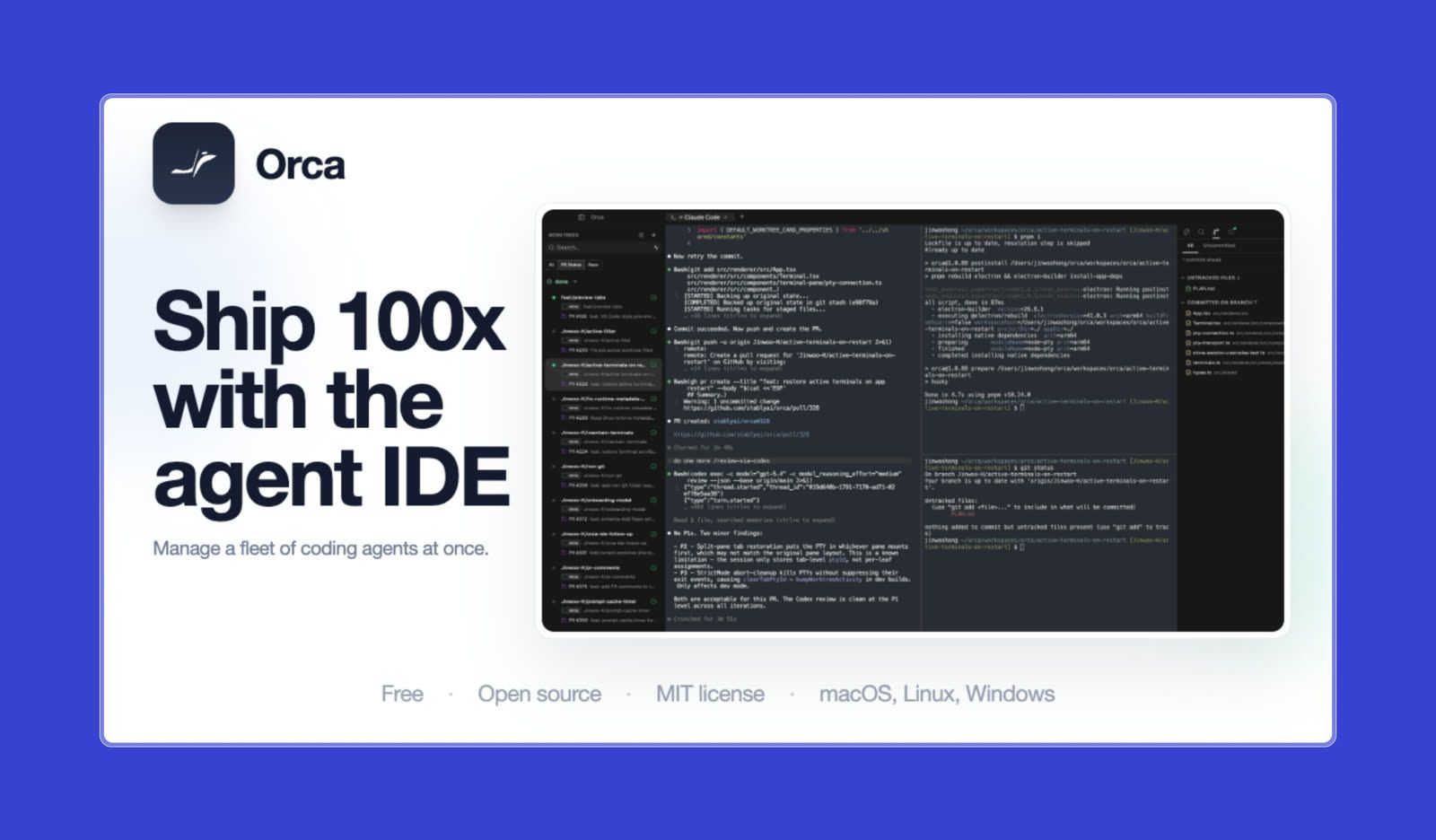
It also has a design mode where you can click an element in the browser and give the agent the relevant HTML, CSS, and screenshot. That makes it easier to work on visual details without explaining exactly what’s wrong in a prompt.
Orca is useful when you want to try several implementations in parallel.
Expo
Expo is the React Native framework for building a new mobile app. You can use one codebase for iOS and Android and preview the result directly on a phone while working with a coding agent such as Claude Code.
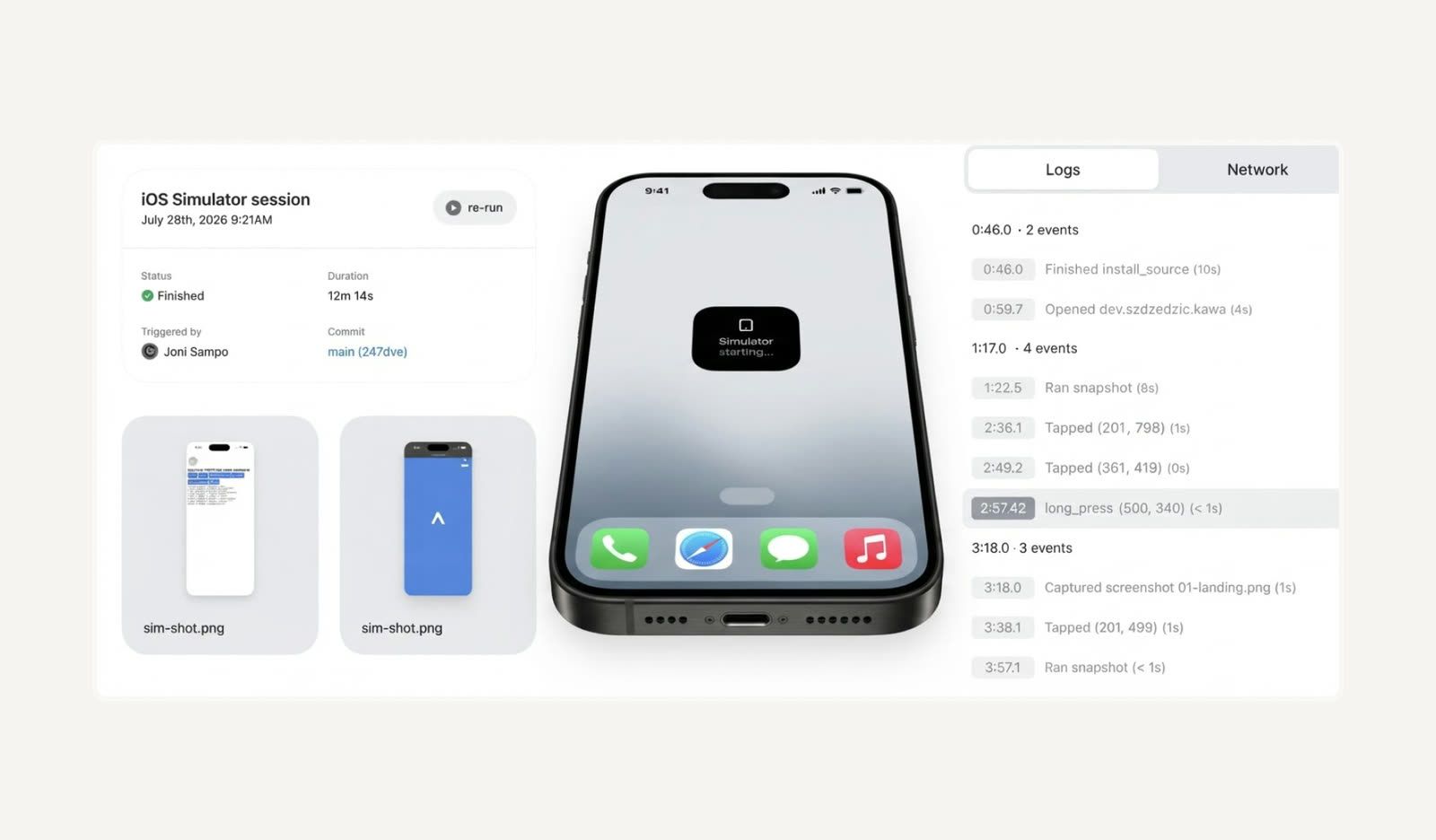
It’s different from the other tools in this list because Expo isn’t an AI builder. It gives the agent a proper mobile development environment to work in, but you still need a coding agent to write the code and a developer to review it.
Expo makes sense when the end product is a mobile app, and you want one React Native codebase for both platforms.
With the right tools, getting a first version out is faster than ever. The interesting part comes next, when you have to keep that code easy to work with as the product grows.
What happens when AI-generated code becomes a real product
A prototype can get you surprisingly far. Once more screens and features are added, though, the way the code is structured starts to matter much more.
On a small project, you may not notice it at all. That might be a landing page, or a prototype with a handful of screens and one main flow. A larger product is different. Once it has user accounts, real data, several user roles, and dozens of screens, each new feature touches more parts of the product, and the right structure makes a huge difference.
“Those who rely on AI for all of the code also rely on it to solve the problems. Eventually the AI chokes on its own chaos, and the work slows right down.”
We see the other side of this with founders. Many come to us with a vibe-coded prototype, and we love that starting point because it shows us what they have in mind. We keep that original idea, then build a stronger foundation underneath it so the same components and patterns can work across the whole product.
How Habitat runs this stack on client work
At Habitat, our designers have grown into design engineers. The person who designs the thing also builds the UI in code, working in the same codebase as our front-end engineers. The engineers set up the technical foundation, review the code, and take on the deeper work, such as architecture, integrations, and data logic.
Each project follows our Blueprint-to-Deploy Process. Before we lock scope, we work through the problem, the people we’re solving it for, and how we should solve it. Then we design the architecture around that, which gives AI the right structure to work within. From there, the work moves through Figma, Claude Code, GitHub, and Vercel. Our clients’ engineers use the same tools, so we can usually be working directly in their codebase within 2–3 days.
For example, during a 10-day Blueprint for a B2B travel platform, the client wanted to see how the pages would look and feel in a live product. Static Figma frames couldn’t give them that, so our designer Helena brought the design into Ship Studio, added interactivity with Tailwind, built a functional prototype, and deployed it to Vercel to share with the team and test with users.
That’s how we work: when we need to test responsive behavior, interactions, motion, or real data, we move from Figma to code.
The client could open it on any device, see the layout on different screens, and click through the main flows before development even started.
The tool is only one part of the workflow. What matters just as much is how you use it and what you build around it. A good design-to-code setup should make the next change easier and not send you back to the beginning.
Built a prototype with AI? Let’s turn it into a real product
If you've already built something in Lovable, v0, or Bolt, send it to us. In a free 48-hour Product Audit, we'll go through it and tell you which parts can go to production and which may need rebuilding before you scale.
FAQ
Which AI design-to-code tool should a non-technical founder start with?
Lovable, if you need a working app with logins and data to validate an idea. v0, if you want React screens closer to a real stack. Treat either one as a prototype, and get the architecture reviewed before you build the real product on top of it.
Do I need Figma if AI can generate the screens?
For a quick demo, no. But once you have a product you'll keep changing, you need a place to refine the interface, explore visual options, manage key states, and work through interaction details. Figma does all that, beyond simply storing components and colors, and for most teams, it remains the design source of truth.
Its MCP server lets Claude Code read the design system directly, helping keep the code consistent with the design. Pen and Paper are good alternatives if you'd rather design with agents directly on the canvas.
How do I keep my product from looking like every other AI-built app?
Start with references instead of a blank prompt. Browse Codrops and Recent for visual direction, then use Variant to see your own idea as screens before anything gets designed. For visuals, Luma AI works from the files you upload, so your images and videos follow your references instead of a generic look.
What should I use for my landing page and pitch visuals?
Relume maps out the site's structure and sections. Ship Studio lets you build the page with Claude Code and deploy it to Vercel from one app. For hero videos and product shots without a photo shoot, use Luma AI. Once your brand style is settled and you need a steady stream of marketing visuals, Exactly is worth a look.
What's the best way to build a mobile app with AI?
Use Expo with a coding agent like Claude Code. You get one codebase for iOS and Android, and you can preview the app on your phone as you build. If you only need a quick mobile demo, Bolt can generate an Expo project right in the browser.
Do I still need a designer if I use AI design tools?
The tools produce screens fast, but someone still has to decide what the product should be and set up the structure the code depends on. That's where most AI-built products fall short. If you've already built something with these tools, our free 48-hour Product Audit will show you what can stay and what needs rebuilding.